IPTV on Apple TV: Add Your M3U Playlist and EPG
To watch IPTV on Apple TV with Revue, add your M3U playlist address in Settings › M3U Playlists (IPTV) › Add M3U Playlist. Revue loads the channels immediately. For the program guide, enter your XMLTV address in Settings › Program Guide (EPG) › Source Address. Revue matches guide data to channels by tvg-id first, then by channel name.
Revue does not include any channels. It plays only playlists you add, so use a playlist you have the right to watch.
What you need
- An Apple TV running tvOS 26 or later, and Revue from the App Store. Revue is free to download, with a 7-day free trial. After that, Revue Pro is a one-time purchase: US$9.99 in the US, with local pricing elsewhere.
- An M3U playlist at an
http://orhttps://address. Revue cannot open playlist files from local storage. It does not support Xtream Codes or Stalker logins. - Optional: an XMLTV program guide address, as plain
.xmlor gzip-compressed.xml.gz.
To test Revue before adding your own playlist, use our test playlist: https://revue.vastlogic.dev/playlists/demo.m3u. It contains a few of Apple’s public sample streams. They are short on-demand clips, not live TV, and they have no guide data.
Step 1: Add your M3U playlist
- Open Settings. If Revue has no sources yet, select Settings on the start screen. Otherwise, press the Back button (Menu on older remotes) to open the sidebar, then select Settings at the bottom.
- Select M3U Playlists (IPTV), then Add M3U Playlist.
- Select Address. On the next page, select the text field to open the keyboard. Type the playlist address, then select OK. If you leave out
http://, Revue adds it for you. - Optional: select Name and enter a name. If you leave it empty, Revue uses the file name. For example,
…/iptv.m3ubecomesiptv. - Select Save.
Revue sets the new playlist as the current source and loads its channels. It does not test the address when you save. If the channels fail to load, the channel page shows “Couldn’t load the playlist” and the reason. To fix it, see IPTV not working on Apple TV.
Typing a long address with the remote is slow. When the on-screen keyboard appears, you can type on your iPhone instead. Use the keyboard notification on your iPhone, or the Apple TV Remote in Control Center.
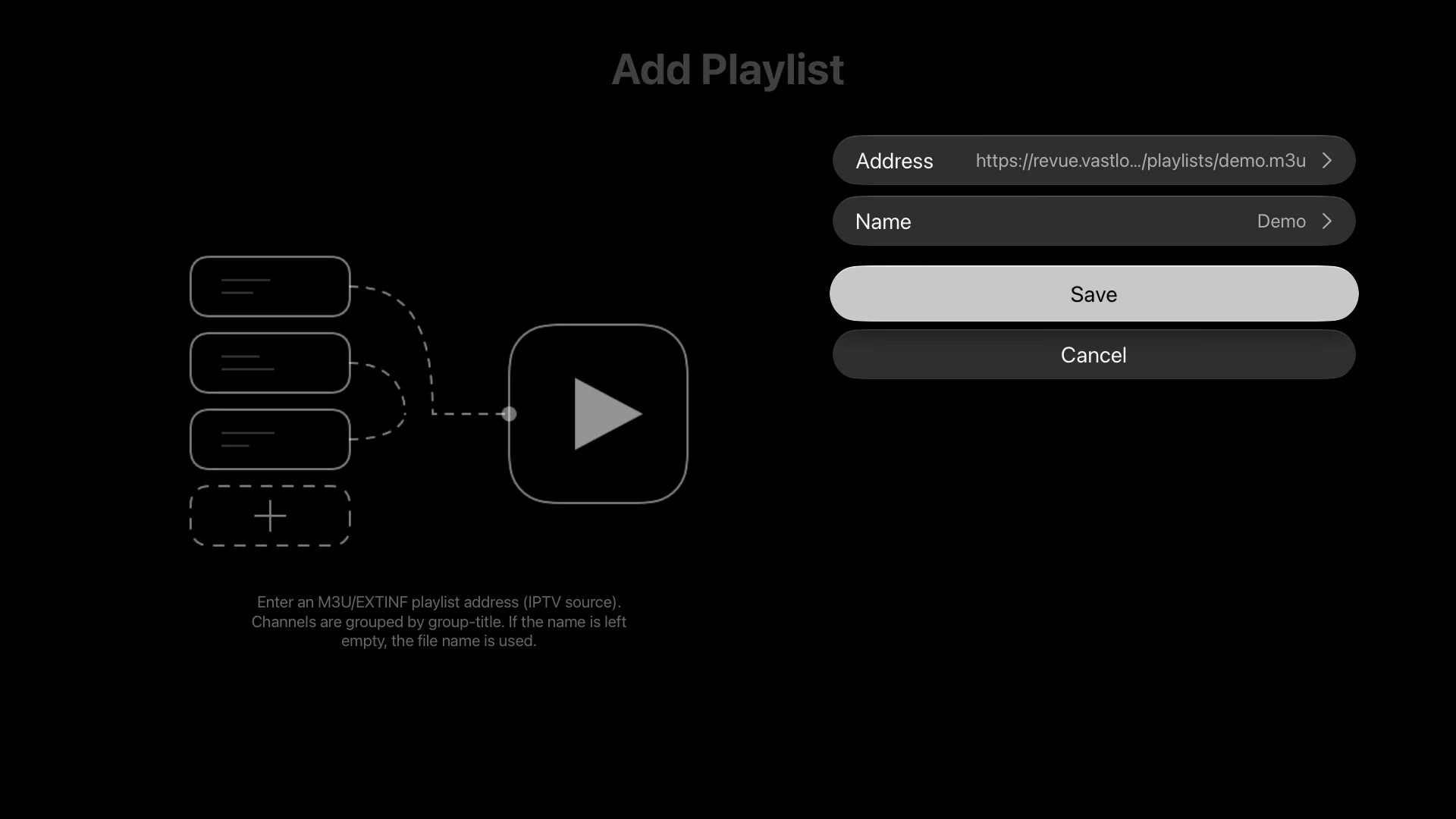
You can add more than one playlist. Each playlist is a separate source in the sidebar. With iCloud Sync on, your other Apple TVs get the same playlists.
Step 2: Check the channel list
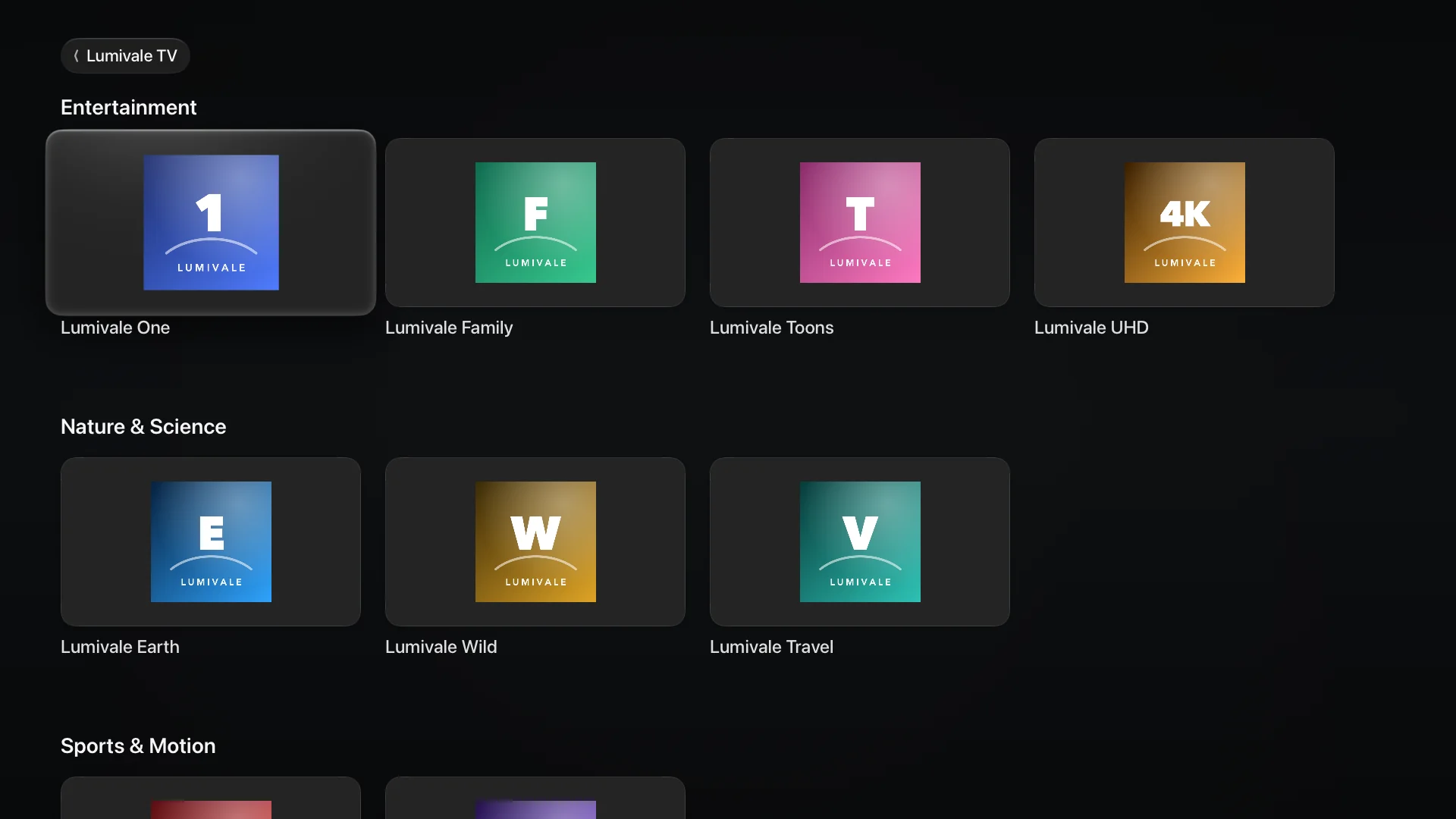
Revue builds the channel list from the #EXTINF lines in your playlist:
| In the playlist | In Revue |
|---|---|
group-title |
Each group is a row, in the order it first appears in the file. Channels without a group share one extra row. |
tvg-logo |
The channel card image. Without a logo, the card shows the first two characters of the channel name. |
| Text after the last comma | The channel name. If empty, Revue uses tvg-name. |
tvg-id |
The key for matching guide data (see below). |
A typical entry looks like this:
#EXTM3U
#EXTINF:-1 tvg-id="news.example" tvg-logo="https://example.com/logo/news.png" group-title="News",Example News HD
https://example.com/live/news.m3u8
Revue reads only tvg-id, tvg-name, tvg-logo, and group-title. It ignores other attributes, such as catchup, user-agent, and #EXTVLCOPT lines. A plain list of stream addresses also works. In that case, each channel is named after its address.
To reload the playlist, press Play/Pause while viewing the channel list. Revue also reloads it automatically when you return to the app after a few minutes.
Step 3: Set up the program guide (EPG)
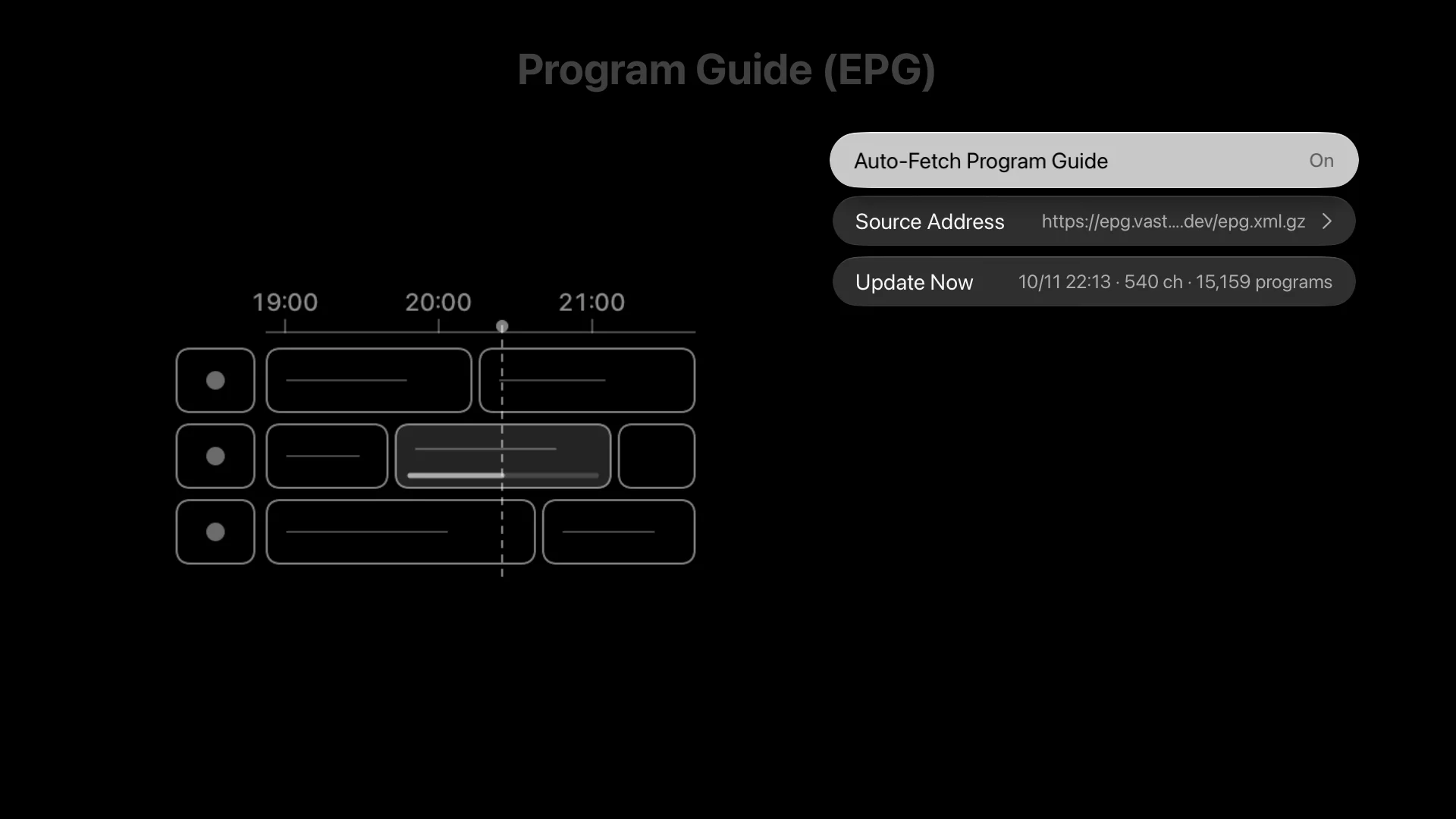
- Go to Settings › Program Guide (EPG). Check that Auto-Fetch Program Guide is on. It is on by default.
- Select Source Address and enter your XMLTV address. To add backup addresses, separate them with commas. Revue tries them in order and uses the first one that works.
- Select Update Now. When the update finishes, the row shows the time, the number of channels, and the number of programs.
Before you change the address, note these points:
- Revue doesn’t read the guide address from the playlist. Some playlists put it in the first line, as
x-tvg-urlorurl-tvg. Copy that address into Source Address. - There is one guide for the whole app. All your playlists share it. Revue does not merge several guides into one.
- Default addresses are pre-filled. They may not cover your channels. Replace them with your own. To go back to the defaults, clear the field, or press and hold Source Address and select Restore Default Source.
- The guide updates on its own. Revue downloads it again when the data is more than 6 hours old, or when the last program in it has ended. If an update fails, Revue keeps the old data.
Where the guide appears
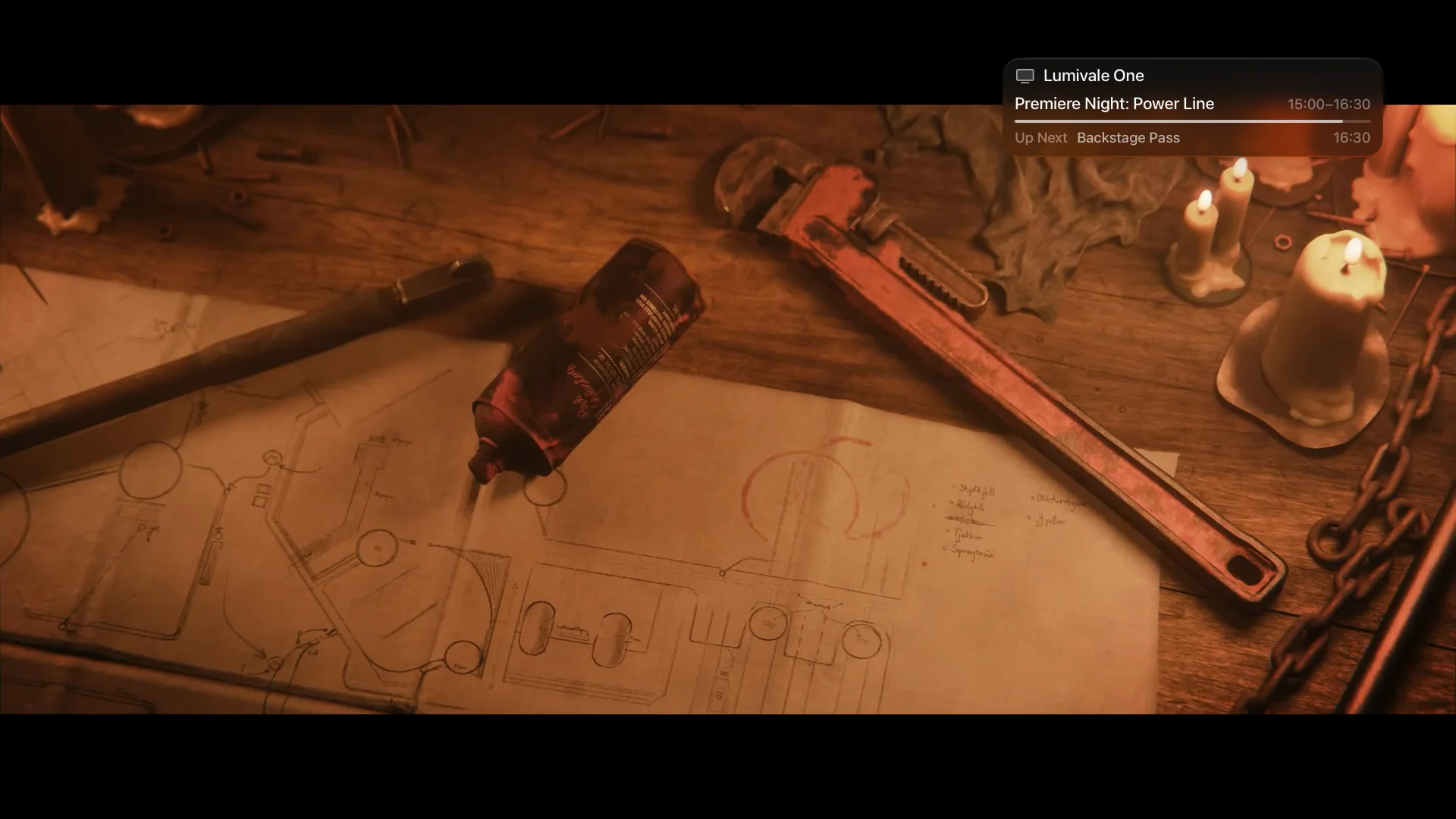
When you open a channel or change channels, a panel appears in the top-right corner for a few seconds. If guide data is available, it shows the current program, its start and end time, a progress bar, and what’s up next. Press Right on the remote to show the panel again. Press Up or Down to change channels within the group.
Revue does not show the guide on channel cards, and it has no full grid of all channels.
How Revue matches the guide to your channels
Revue tries these steps in order and stops at the first match:
- The channel’s
tvg-idmatches theidof a<channel>in the XMLTV file. - The channel’s
tvg-idmatches one of that channel’s<display-name>values. - The channel name matches a
<display-name>. - The channel name without a quality suffix, such as HD, FHD, or UHD, matches a
<display-name>.
When comparing names, Revue ignores letter case, full-width and half-width forms, spaces, and separators such as -, _, and brackets. It keeps +. Step 4 removes suffixes such as HD, but not 4K or 8K. For example, Example News HD matches a display name of EXAMPLE-NEWS, but Example 4K does not match Example.
Revue does not match by tvg-name alone. If several XMLTV channels share a display name, Revue ignores that name. When nothing matches, the channel shows no guide. Revue does not guess.
The guide doesn’t match: what to check
| What you see | What to check |
|---|---|
| Update Now shows “Program guide not fetched yet”, or an update failed | Open the address in a browser on the same network. “None of the candidate addresses are reachable” means the Apple TV cannot download any of them. “Couldn’t parse the XMLTV format” or “Corrupted gzip data” means the file is not valid XMLTV. |
| The update works, but a channel has no guide | Open the XMLTV file and find the <channel> for that channel. Put its id into the channel’s tvg-id. This is the most reliable fix. |
| The guide shows the wrong program, or times are off by hours | Check the start and stop times in the XMLTV file. Times with an offset, such as +0100, are converted automatically. Times without an offset are read in the Apple TV’s time zone. Also check the time zone in the Apple TV settings. |
| The guide stops after a while | The XMLTV file may only cover a few days. Check that the address is updated regularly. Revue downloads it again when the last program has ended. |
| One playlist has a guide and another doesn’t | Revue uses one guide for all playlists. Use a guide that covers the channels of both playlists. |
Common questions
Can I load a playlist from a USB drive or a local file? No. Revue opens playlists only from http:// and https:// addresses. You can serve the file from a computer or NAS on your network and use its address.
Does Revue support Xtream Codes? No. Revue does not support Xtream Codes or Stalker logins. If you also have an M3U address for the same channels, add that instead.
Does Revue support catch-up or recording? No. Revue ignores catch-up attributes in the playlist, and it cannot record.